| Term | Meaning |
|---|---|
| Library | Top-level collection of tracks and the playlists that belong to it |
| Playlist | A saved selection of tracks within one library |
| Smart view | A view such as Favorites or Recently Played; it does not duplicate your files |
Current Queue controls what plays next. It is separate from a saved playlist.
Create and switch
Switch local libraries with the source picker. Find New library… in that menu or under Import / New. Create a playlist from the sidebar or Import / New. Check the selected source before importing or changing a playlist. A remote library is supplied by its server and follows different management rules.
Browse albums and artists
The WinUI preview offers artwork grids for Albums → Tracks and Artists → Albums → Tracks. Use the header back button to move up one level; choosing another sidebar view leaves the current group.
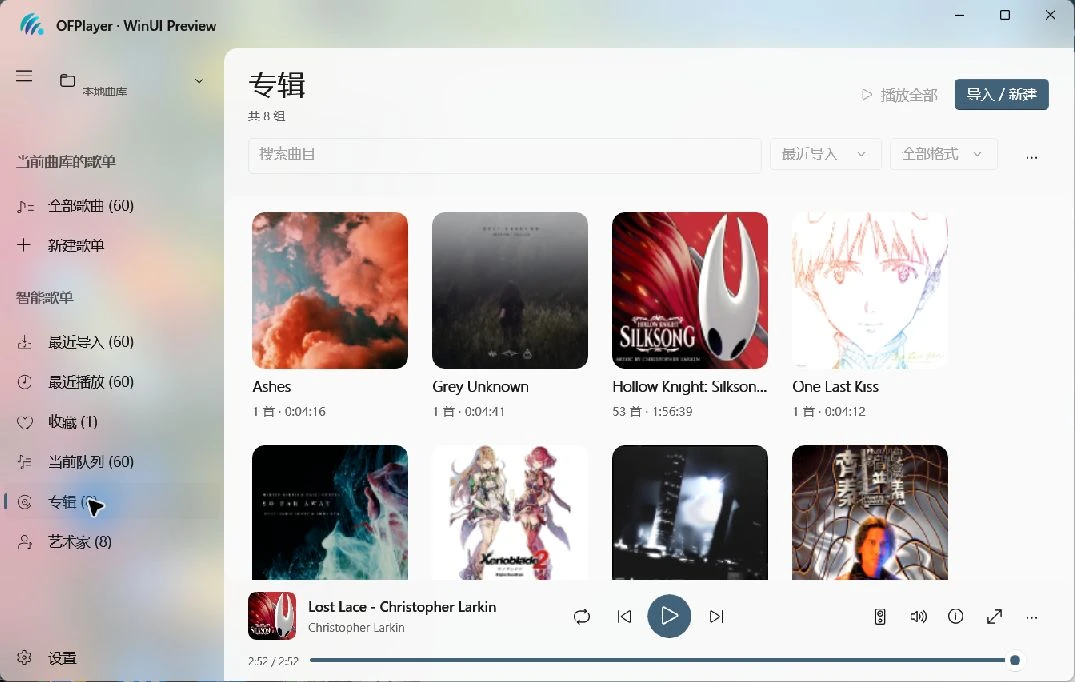
Grouping depends on tags in your audio files. If names or artwork look wrong, inspect the track details and source tags. Editing custom album or artist grid artwork is not covered by the current preview.
Search and select
Use track search, sorting, and the format filter in a track list. Current sort choices include recently imported, title, duration, and size. Library and playlist sort preferences are saved separately. Choose Multi-select or press Ctrl+A in a list to select currently loaded rows; Esc leaves multi-select mode.
Remove from this playlist only removes the playlist relationship. Deleting a track, playlist, or library has a different scope; read the confirmation before proceeding. Removing a playlist entry does not delete the audio file from disk.