Start with the music you already own. This guide primarily covers the Windows WinUI preview, checked on September 22, 2026. The public download may still be the older Tauri app, so check the Windows version guide and download page before installing. You can also listen in your browser.
Import your first tracks
- Choose a local library from the source picker in the upper left.
- Select Import / New → Import audio… to choose files, or Import folder… for a whole directory.
- Wait for the import to finish, then open All Songs in the sidebar.
- Select a track or use Play All. The bar at the bottom controls playback, position, and volume.
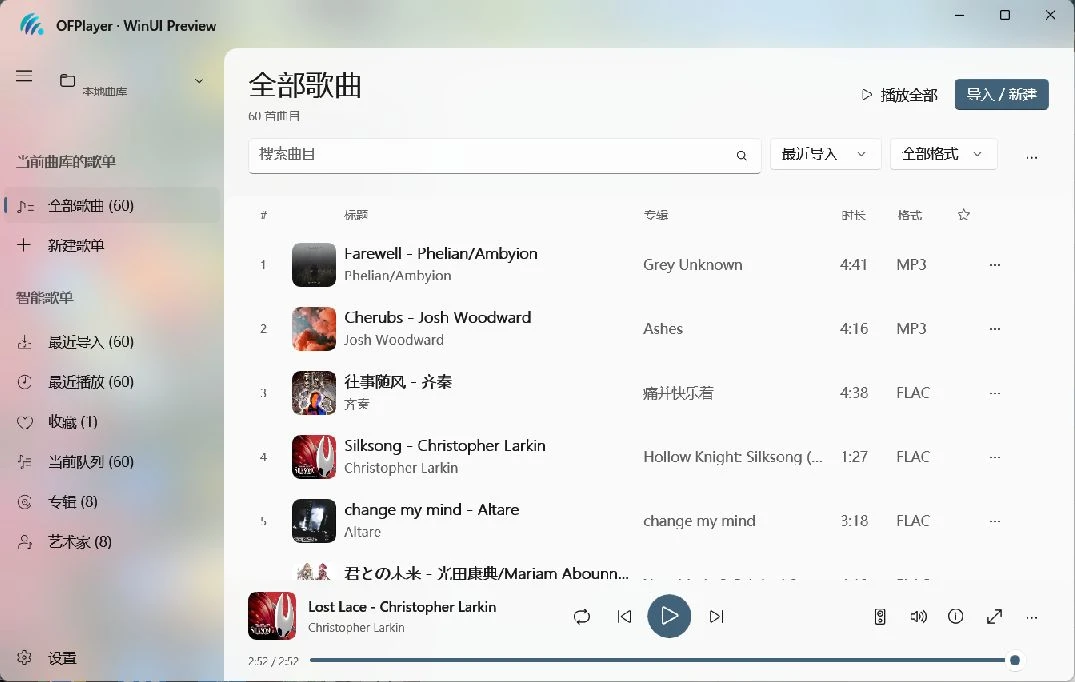
Find your way around
| Area | What it does |
|---|---|
| Source picker | Switch libraries, create a library, or add a remote source |
| Library playlists | Browse all tracks and playlists you created |
| Smart views | Recently imported, recently played, favorites, queue, albums, and artists |
| Main area | Search, sort, filter, and browse tracks and artwork |
| Playback bar | Playback, output device, details, immersive view, and more |
| Settings | Appearance, playback, storage, devices, and Hub |
A library contains tracks and playlists. Current Queue is the order for this listening session, separate from saved playlists.
Where to go next
- Organize your collection: Libraries, playlists, and albums.
- Follow the words: Lyrics, immersive view, and Lyric Capsule.
- Listen from a NAS or server: Remote music sources.
- Continue on your phone: Phone handoff and Hub.
The web player imports files through your browser and keeps its own site storage. It does not share the Windows preview database, system output selection, or floating desktop windows. Clearing site data or switching browsers or domains may make your saved web library unavailable. For help, see Troubleshooting.