Select a track or use Play All. The bottom playback bar shows the current song, artwork, time, and playback state. Browsing another page does not change the song already playing.
| Control | Action |
|---|---|
| Play / Pause | Resume or pause the current track |
| Previous / Next | Move through the current queue |
| Progress bar | Seek within the track |
| Volume | Open the volume slider |
| Output device | Choose the system default or a detected device |
| Details | View artwork and metadata |
| Immersive | Open the full artwork and lyrics view |
| More | Open lyrics, statistics, and Lyric Capsule actions |
Playback mode and queue
The mode control cycles through In order → Repeat all → Repeat one → Shuffle for the current queue. Open Current Queue in the sidebar to see what is lined up. Browsing another album is different from starting playback from that album.
Choose an output
Select Output device in the playback bar to use a detected speaker, headphones, or the system default. If there is no sound, check both OFPlayer and Windows volume. Recheck the selection after unplugging a device or disconnecting Bluetooth. Settings → Playback → Remember volume controls whether the volume preference is saved. Windows media keys act on whichever media session the system currently controls.
Immersive playback
Open the immersive view from the playback bar. It displays artwork and available timed lyrics. Use the on-screen close control or Esc to return.
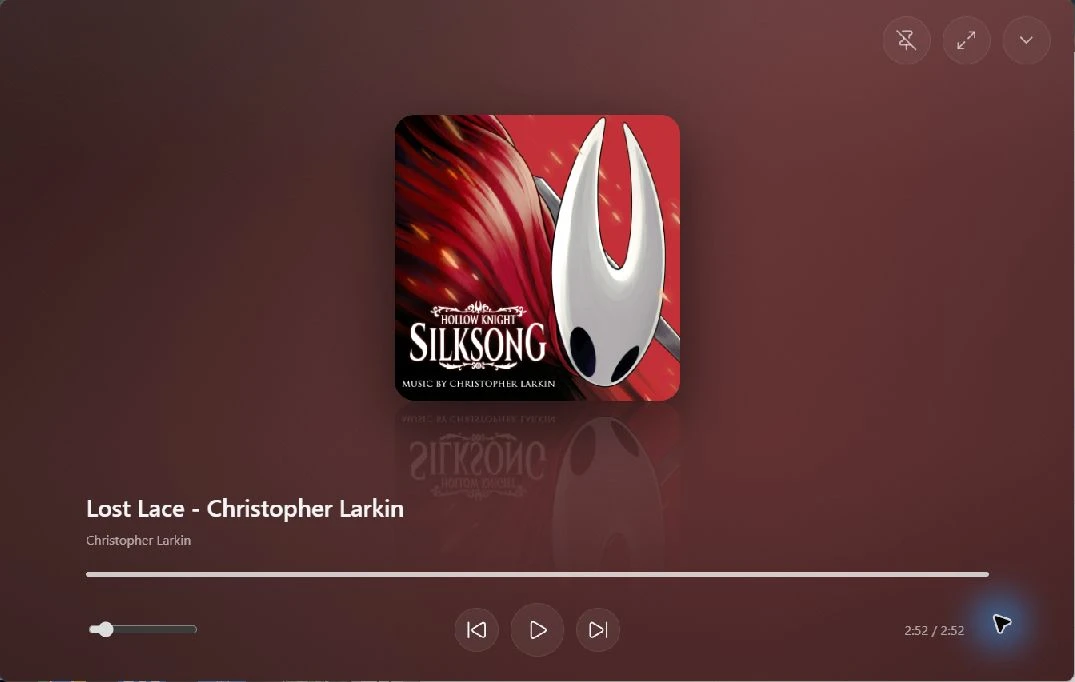
No lyrics are generated for a track that has none. See Lyrics and Lyric Capsule. If playback fails, note the error and try a known-good local file to help distinguish a source problem from an output or remote connection issue. Continue with Troubleshooting.